narou.rs Setup Guide (Windows 11, with Screenshots)
⚠️ This article is not an official narou.rs manual. For anything unclear, prefer the latest information in the narou.rs README and Issues.
narou.rs (developed by Rumia-Channel) downloads, updates, and converts web novels into EPUB. It is a compatible reimplementation, in Rust, of narou.rb (by whiteleaf7), and like narou.rb it uses AozoraEpub3 as its conversion engine.
Follow the steps on this page from top to bottom and you will end up with a setup where pasting a novel URL is all it takes to get an EPUB. It takes about 15 to 20 minutes.
📖 The reasons behind each step, licensing, a side-by-side look at the two editions’ output, adding narou.rs to PATH, and other details are collected in Details. You do not need them to follow the steps.
First: Standard or GPL Edition?
narou.rs is distributed as two different zips.
| Standard edition | GPL edition | |
|---|---|---|
| Best for | Converting with AozoraEpub3 itself (your AozoraEpub3 settings such as AozoraEpub3.ini, gaiji fonts, and automatic preview apply as-is) |
Getting started quickly without installing Java |
| Java and AozoraEpub3 | Required | Not required (conversion engine built in) |
| Steps to follow | All of 1 → 7 | Skip steps 1 and 2 |
If you just download and use it, either edition is fine. The body text is the same with both, but the title page, table of contents, and headings look slightly different (rendering comparison).
Overview
- Install Java (not needed for the GPL edition)
- Install AozoraEpub3 (not needed for the GPL edition)
- Install narou.rs
- Initialize and register AozoraEpub3
- Open the Web UI
- ★ Set device to EPUB (Required)
- Add a novel and get the EPUB
0. What You Need
- A Windows 11 PC and an internet connection
This guide uses the following folders. If you put things elsewhere, adjust the paths in the commands accordingly.
| Folder | Purpose |
|---|---|
C:\Tools\AozoraEpub3-jdk21 |
AozoraEpub3 (the conversion engine). Not needed for the GPL edition |
C:\Tools\narou |
narou.rs itself |
C:\Tools\narou-novels |
Where your novels are stored and managed |
Point: Avoid locations that contain non-ASCII characters or spaces (your
Downloadsfolder in a localized Windows, anything under OneDrive, and so on) and use paths made of ASCII characters only.
How to Open the Command Window (PowerShell)
- Right-click the Start button → choose “Terminal”
- In File Explorer, right-click an empty area inside a folder and choose “Open in Terminal” — this opens it in that folder (used in steps 4 and 5)
Paste a command into the window with a right-click (or Ctrl+V). You do not need to run it as an administrator.
1. Install Java
Not needed for the GPL edition → skip to step 3.
Run this command in PowerShell:
java -version
If a version number (21 or later) is displayed, you are good to go. If you get “not recognized”, follow the
👉 Java installation guide on the top page and install Java 25 LTS from Eclipse Temurin.
✅ Checkpoint:
java -versionprints a version number
2. Install AozoraEpub3 (in a Dedicated Folder for narou.rs)
Not needed for the GPL edition → skip to step 3.
- Download
AozoraEpub3-x.x.x-jdk21.zipfrom the AozoraEpub3-JDK21 download page. - Right-click the zip → “Extract All”, type
C:\Tools\AozoraEpub3-jdk21into the destination box, and extract.
⚠️ Caution: Even if you already use AozoraEpub3 for other purposes, extract a separate copy for narou.rs (why).
✅ Checkpoint: opening
C:\Tools\AozoraEpub3-jdk21showsAozoraEpub3.jardirectly inside it. If everything ended up one folder deeper, move the contents up so they sit directly underC:\Tools\AozoraEpub3-jdk21.
3. Install narou.rs
- Download the Windows zip from “Assets” on the narou.rs Releases page.
- Standard edition:
narou_rs_win_x64.zip - GPL edition:
narou_rs_win_x64-GPL.zip - On an ARM-based Windows PC, pick the one named
win_arm64instead.
- Standard edition:
- Right-click the zip → “Extract All”. It contains a
narou/folder — place it so that it ends up atC:\Tools\narou. Do not move or delete the files inside it (folder layout).
✅ Checkpoint: typing
C:\Tools\narou\narou_rs.exe versionin PowerShell prints a version number (for example0.4.4) (if you get “VCRUNTIME140.dllwas not found” → Troubleshooting)
4. Initialize and Register AozoraEpub3
- In File Explorer, type
C:\Toolsinto the address bar to open it, right-click an empty area → “New” → “Folder”, and create a folder namednarou-novels. - Open the new
narou-novelsfolder, right-click an empty area inside it → choose “Open in Terminal” (a window opens whose prompt line showsC:\Tools\narou-novels). - Paste the line for your edition and press Enter.
Standard edition:
C:\Tools\narou\narou_rs.exe init -p "C:\Tools\AozoraEpub3-jdk21"
GPL edition (when asked AozoraEpub3のあるフォルダを入力して下さい — “enter the folder containing AozoraEpub3” — press Enter without typing anything):
C:\Tools\narou\narou_rs.exe init
Along the way it prints !!!WARNING!!!; you can just continue (details).
✅ Checkpoint: it ends with
初期化が完了しました!(“initialization complete”)
5. Open the Web UI
Just like in step 4, open C:\Tools\narou-novels, choose “Open in Terminal”, and run this single line. From now on, this is all you need to start it.
C:\Tools\narou\narou_rs.exe web
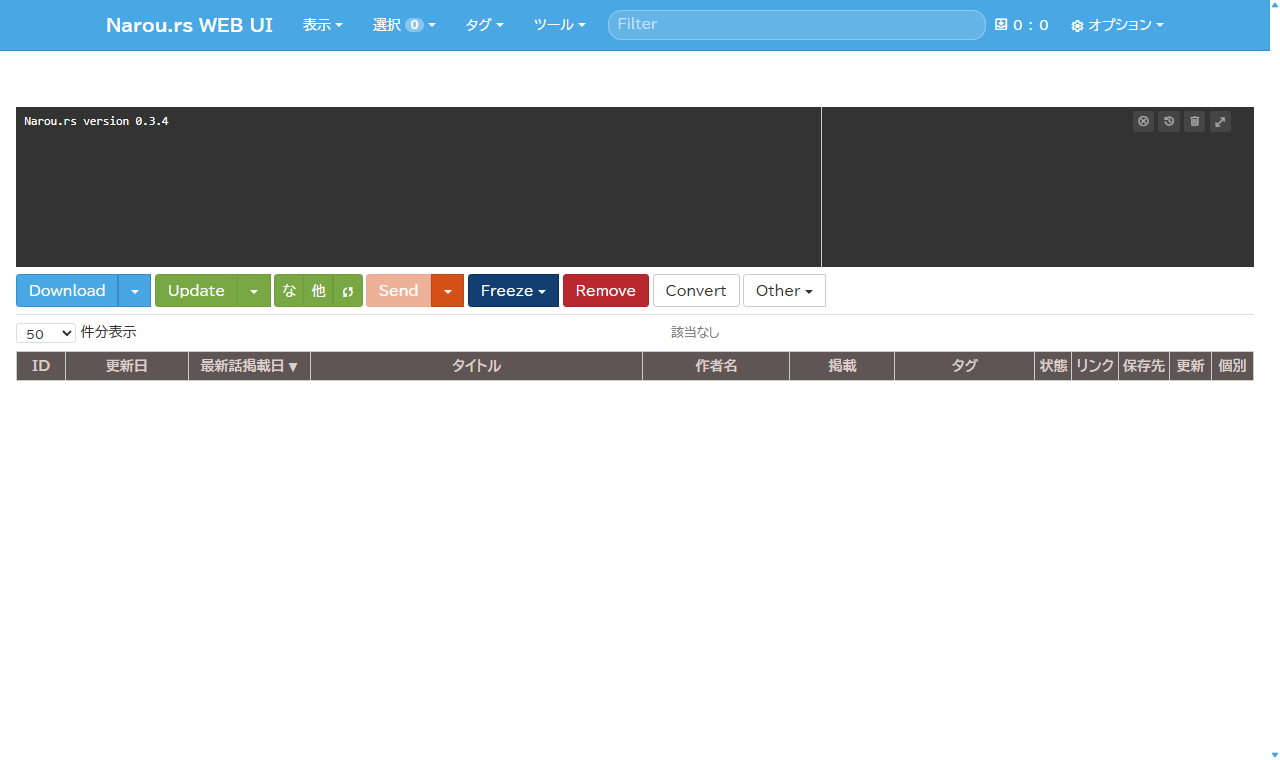
Your browser opens automatically and shows the narou.rs screen (about the address).
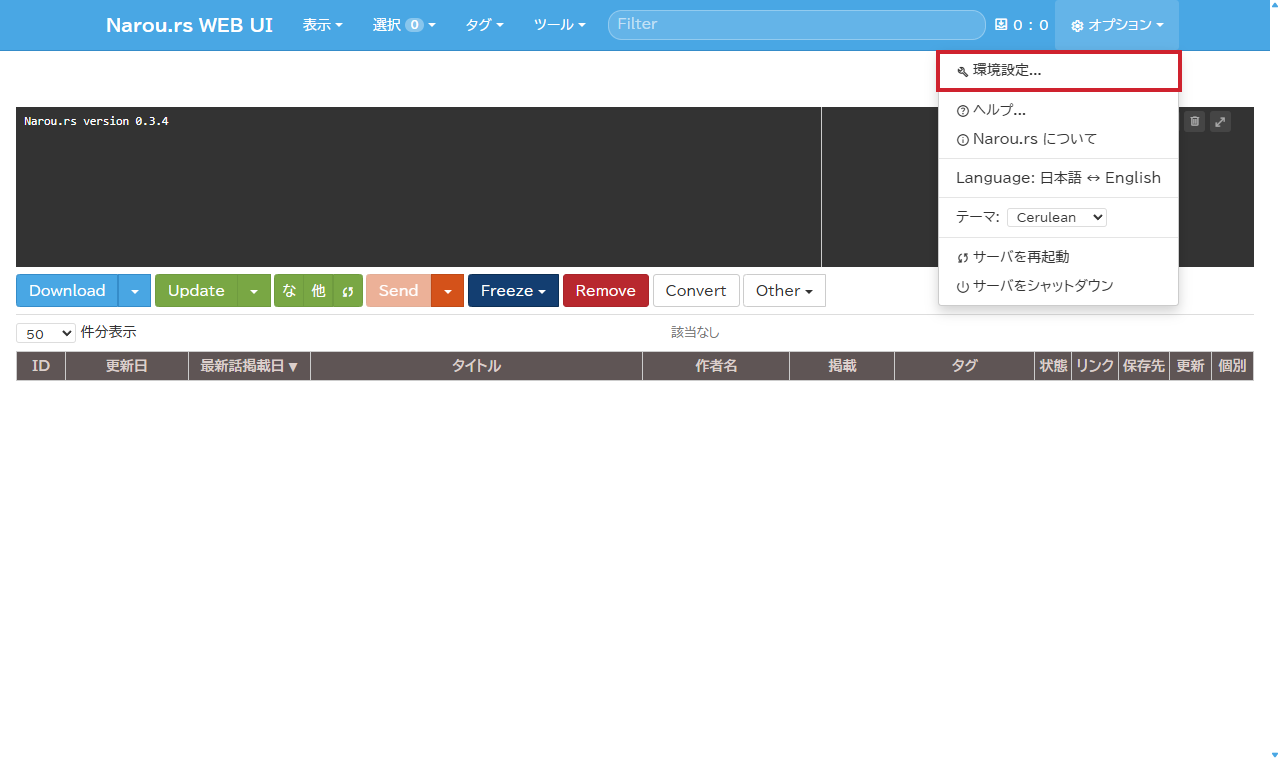
The screenshots below show the Japanese UI; the layout is identical in English. You can switch the Web UI language with the “Language: 日本語 ↔ English” item in the “⚙ Options” menu at the top right.
- Do not close the black window (PowerShell). Closing it also shuts down the Web UI (press
Ctrl+Cin PowerShell when you do want to stop it). - If the Windows Firewall permission dialog appears on first launch, click “Allow access”.
- On the first run you may see a “new features tour”. It is fine to dismiss it.
✅ Checkpoint: the “Narou.rs WEB UI” screen is displayed in your browser
6. ★ Set device to EPUB (Required)
Open “⚙ Options” at the top right of the screen → “Settings…”.
At the very top of the “General” tab, change “device (the target device for conversion and transfer)” to “EPUB”, then click “Save settings” at the top right.
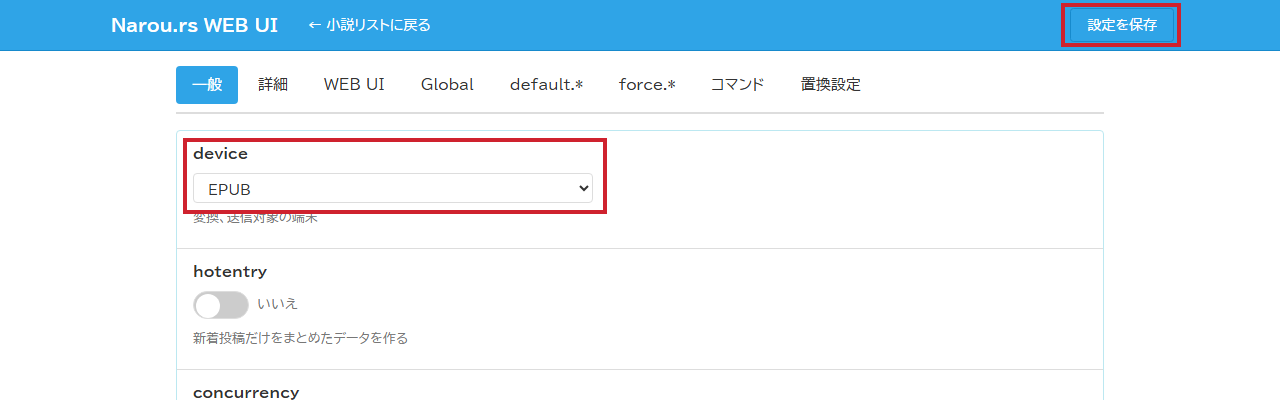
Click “← Back to the novel list” to return to the previous screen.
✅ Checkpoint: reopening the settings shows device set to EPUB
7. Add a Novel and Get the EPUB
Click the “Download” button at the top left to open the input field. Paste the URL of the novel page you want to read (Syosetu, Kakuyomu, and so on) and press “Download”.
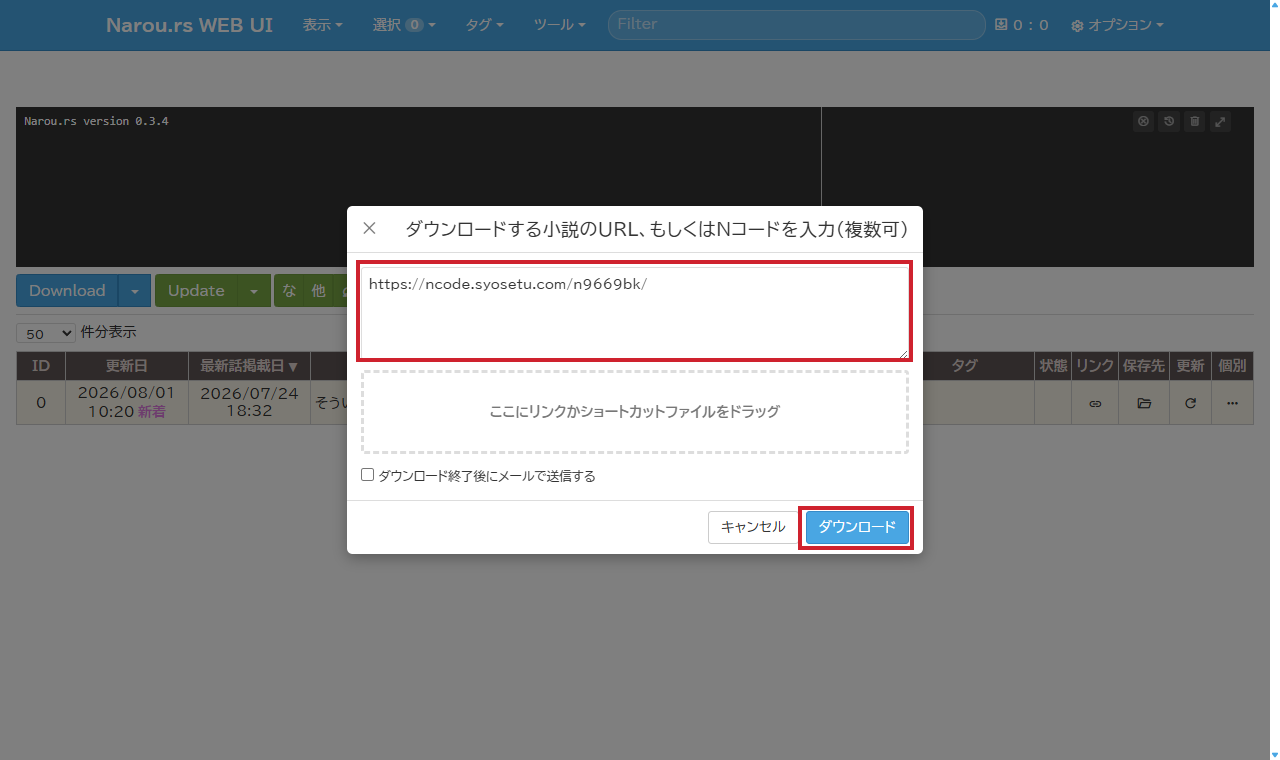
Everything from downloading to EPUB conversion runs automatically. When it finishes, the novel is added to the list — click the folder button in the “Save location” column to open the folder containing the generated .epub file.
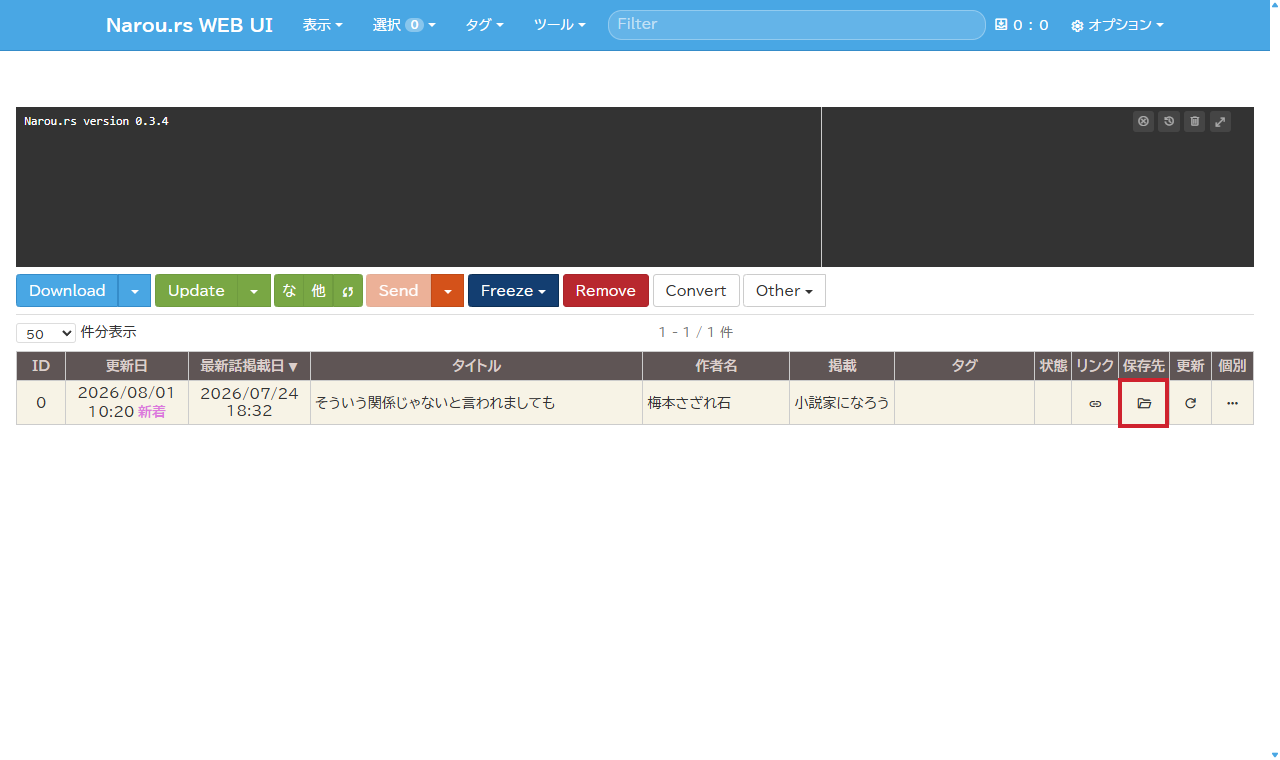
The EPUB is stored under C:\Tools\narou-novels\小説データ\(site name)\(title)\. From there, just send it to your reader of choice (a smartphone app, a Kindle, and so on).
Point: To pull in newly published chapters of an ongoing series, just press the “Update” button. It fetches the new episodes and rebuilds the EPUB.
✅ Checkpoint: there is an
.epubfile in the folder
Troubleshooting
| Symptom | What to do |
|---|---|
VCRUNTIME140.dll was not found |
Install the official Microsoft Visual C++ Redistributable (usually the x64 version; the ARM64 version on ARM-based Windows) |
narou_rs is “not recognized” |
Run it with the full path (C:\Tools\narou\narou_rs.exe), or see Add narou.rs to PATH (Details) |
| “Windows protected your PC” | Can appear if you double-click narou_rs.exe, for example. Get past it with the same steps as for the SmartScreen warning |
| A Java-related error during conversion | Check that Java is installed → step 1. Even the GPL edition uses Java when AozoraEpub3 is registered → Details |
AozoraEpub3 not found during conversion |
The standard edition has no AozoraEpub3 registered. Run init -p ... after step 2 (you can rerun it in the same folder as often as needed) → step 4. To convert without Java or AozoraEpub3, use the GPL edition |
Conversion runs but there is no .epub file |
Check that device is set to EPUB → step 6 |
| Initialization ran but the Web UI shows nothing / the novel list is empty | You may have run the command in a different folder. Check that the prompt line shows C:\Tools\narou-novels → step 4 |
| The firewall dialog appeared | Click “Allow access” (it only runs on localhost, so nothing is exposed externally) |
Reference Links
- narou.rs Setup Guide — Details — the two editions, licensing, output and rendering comparison, init details, adding to PATH, and more
- narou.rs (GitHub) — README, latest releases, bug reports
- AozoraEpub3_Lite (GitHub) — the conversion engine built into the GPL edition
- AozoraEpub3 Usage Guide — detailed conversion settings
- narou.rb Setup Guide — if you want to use the Ruby version, narou.rb
- AozoraEpub3-JDK21 Releases — download AozoraEpub3 itself